Privacy Portal Login
Overview
The Privacy Portal Login process is designed to allow users to securely access and manage their privacy-related requests, such as data deletion, opt-out, or data copy requests.
The Privacy Portal provides a centralized interface for users to:
Check the status of submitted requests.
Verify requests for authenticity.
View completed and active requests.
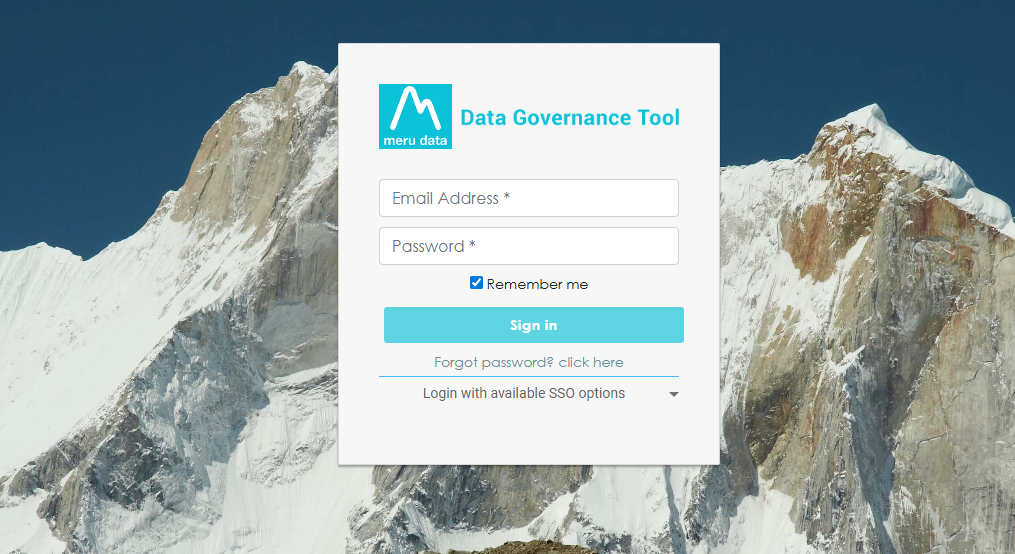
Login to the Data Governance Tool by entering your credentials.
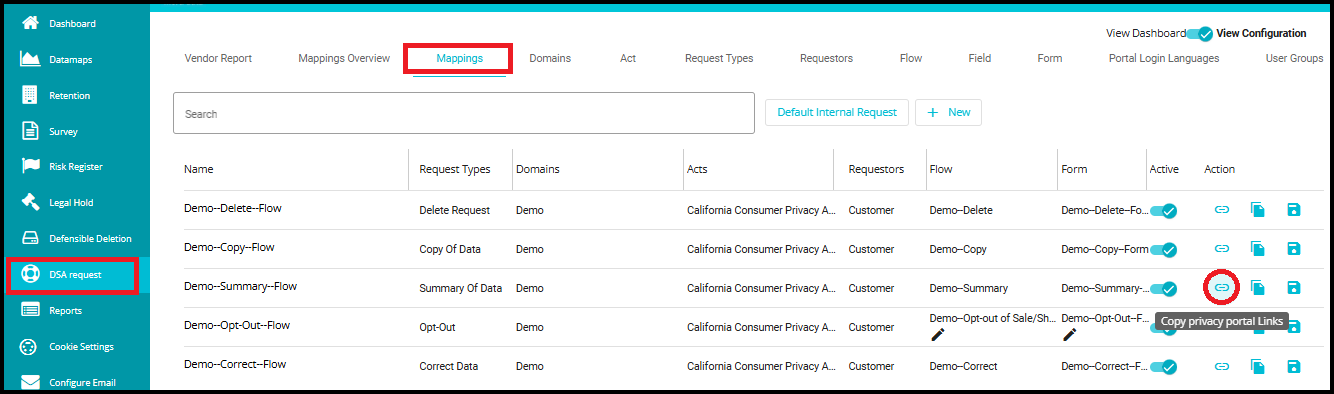
Navigate to the Datamaps module.
Open the Mappings tab.
In the table, find the row for the mapping you want (e.g.,Demo-Summary-Flow).
In the Action column of that row, click the icon of Copy privacy portal Link.
- Open a new browser tab, paste the copied link into the search bar, and press Enter to open the Privacy Portal.
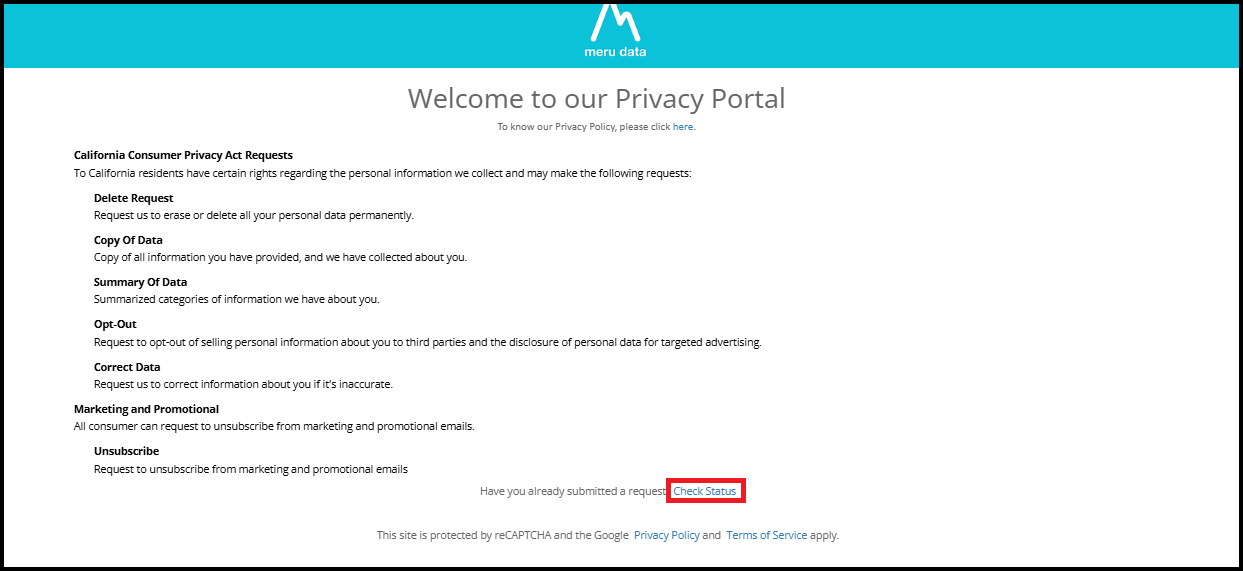
- Clicking Check Status will navigate you to the Privacy Portal Login page, where you can log in, to view the status of your submitted request.
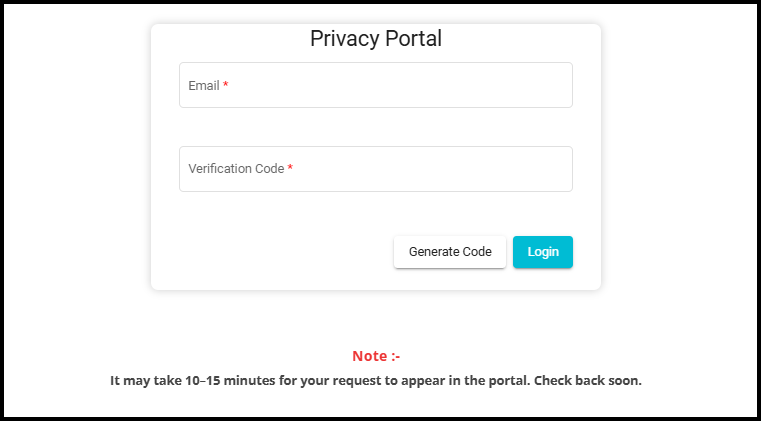
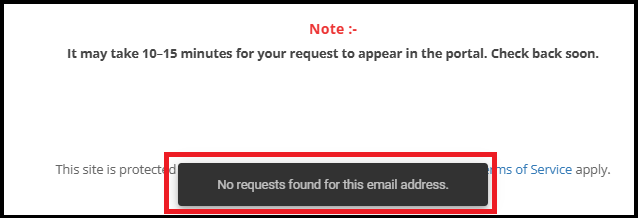
- When you enter an incorrect email address and click Generate Code, a message appears at the bottom saying: "No requests found for this email address."
when a correct email address is entered:
- After clicking Generate Code, a message appears at the bottom: "Verification code sent successfully".
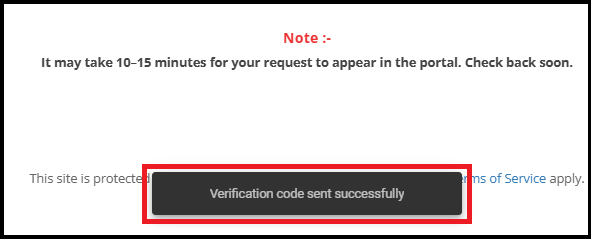
- This means the system has sent an email containing the verification code to the entered email address.
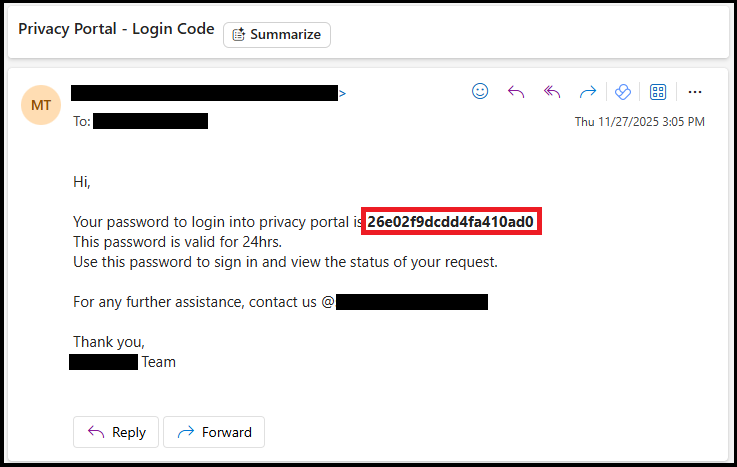
- The user can then retrieve the code from their email and enter it in the Verification Code field to proceed with login.
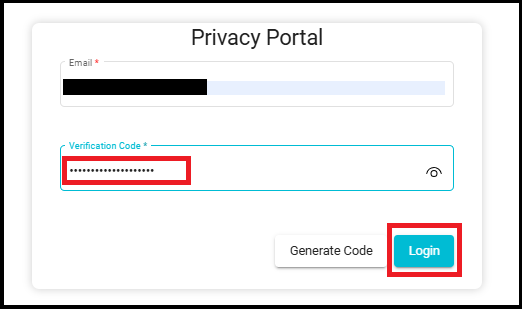
Requests status page appears after clicking Login in the Privacy Portal.
The page has two tabs: Active and Completed.
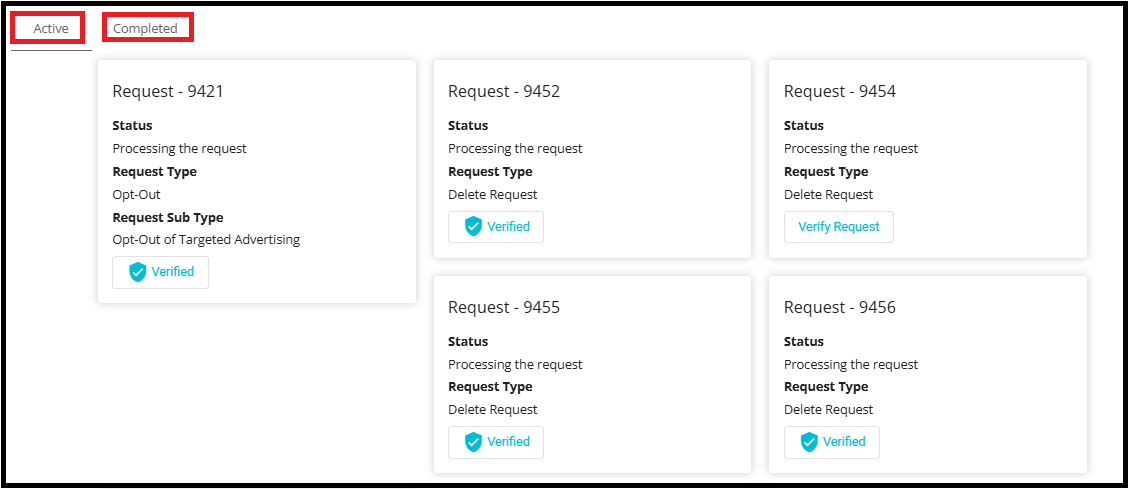
Under Active, you can see all ongoing requests. Each request card displays:
Request ID (e.g., Request - 9421, 9452, etc.)
Status: Processing the request
Request Type: (e.g., Opt-Out, Delete Request)
Request Sub Type (if applicable, e.g., Opt-Out of Targeted Advertising)
A verification badge (e.g., Verified or Verify Request).
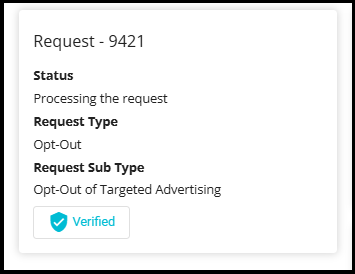
- Request can be verified in 2 ways.
Verify via Email Link
Verify via Privacy Portal
Verify Via Email Link
When you submit a request, you receive an email.
The email contains a message confirming your request and includes a verification link labeled "here".
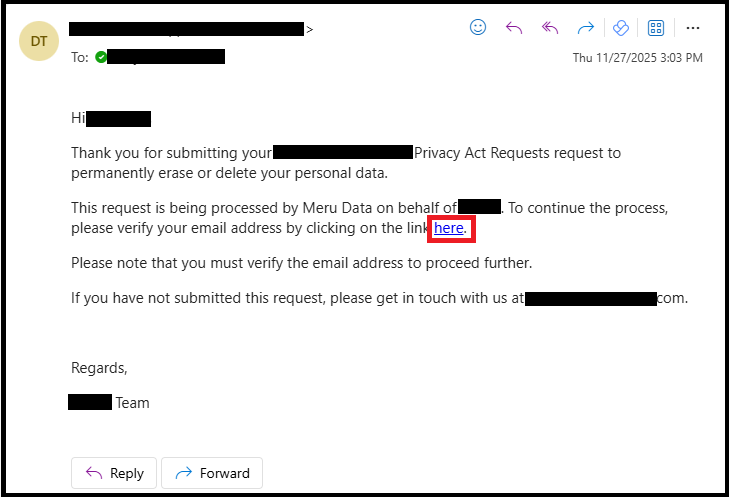
- After clicking the verification link in the email, if your request is successfully verified, you will see a Success message with a green checkmark and the text "Success!".

Verify via Privacy Portal
- Click Verify Request.

- Then click Resend Verification to receive a new verification code via email.

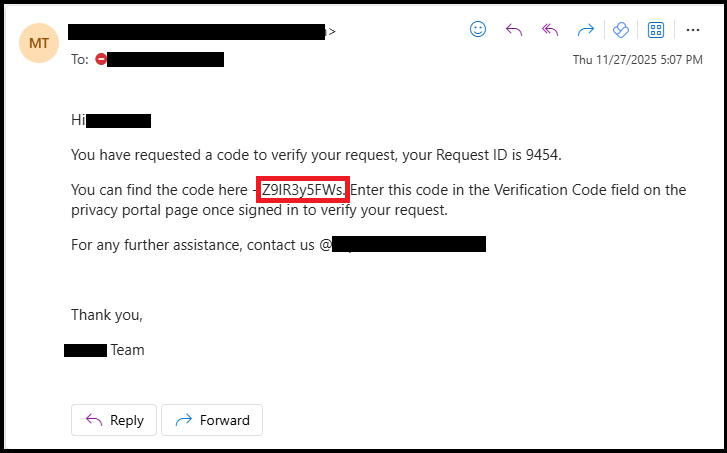
Enter the received code in the Verification Code field and click Verify.
Once verified, the request will display a Verified badge.

- Completed tab in the Privacy Portal contains details of requests that have been fully processed.
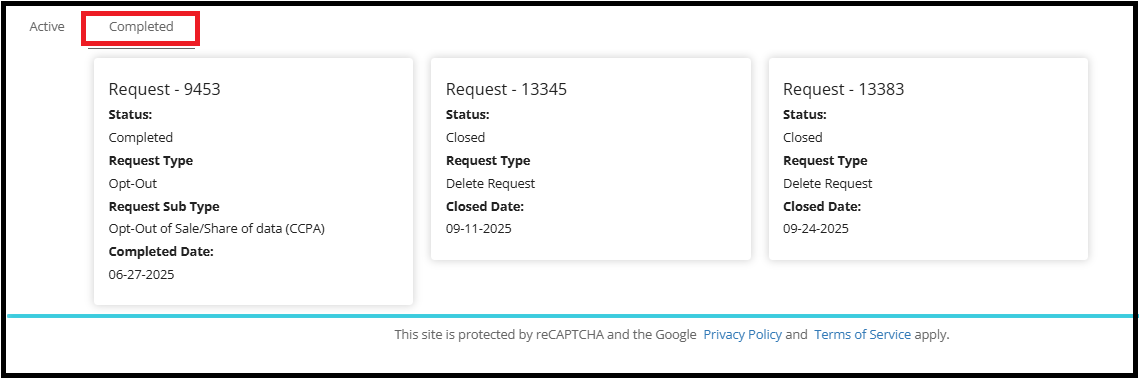
Each request card displays:
Request ID (e.g., 9453, 13345, 13383)
Status: Completed or closed.
Request Type: (e.g., Opt-Out, Delete Request)
Request Sub Type: (if applicable, e.g., Opt-Out of Sale/Share of data (CCPA))
Completed Date or Closed Date (e.g., 06-27-2025).
- The Logout button is located at the top-right corner of the Privacy Portal interface. Clicking this button will log you out of the portal and end your current session.
